
The Invisible Baggage of Text
You find the perfect quote on a website. You highlight it. You copy it. You paste it into your email to your boss.
Suddenly, the text is size 14. The font is different. There is a weird gray background behind the words. And when you hit "Enter," the cursor jumps down three lines instead of one.
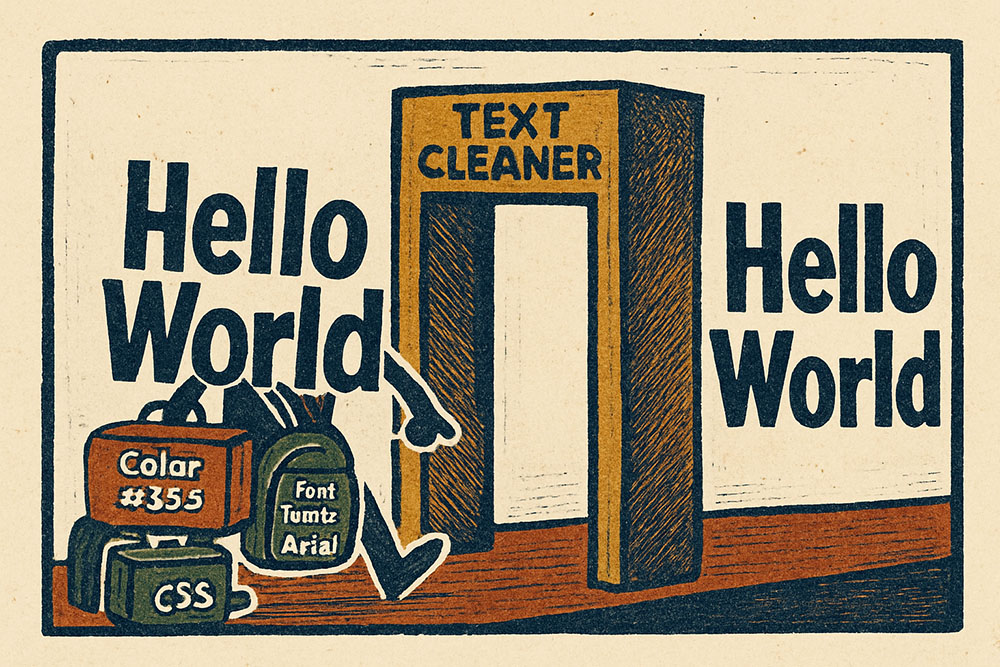
Congratulations, you have just been a victim of "Rich Text Attributes." When you copy text, your computer tries to be helpful. It copies the letters, but it also copies the metadata: the font family, the color, the background shading, the bold weight, and even the invisible HTML tags.
This is the "Copy-Paste Nightmare." It wastes time, breaks layouts, and makes professional documents look like ransom notes.
The "Paste as Plain Text" Shortcut
The first line of defense is knowing the keyboard shortcuts.
Windows: Ctrl + Shift + V
Mac: Cmd + Shift + V
This command tells the computer: "Forget the styling, just give me the letters." It works in Chrome, Slack, and many modern apps. But it does not work everywhere. Microsoft Word and Outlook are notoriously stubborn about this, often requiring you to click through menus to find "Keep Text Only."
The "Notepad" Laundry
For decades, the "Notepad Trick" was the standard solution.
1. Copy dirty text.
2. Open Notepad (Windows) or TextEdit (Mac - in plain text mode).
3. Paste.
4. Copy again.
5. Paste into final doc.
Notepad doesn't support formatting, so pasting into it forces the operating system to strip all styles. It acts as a digital laundry. It works, but it is slow. It requires opening a separate app and doing the double-copy dance.
The Better Solution: Online Text Cleaners
A dedicated Remove Formatting tool is faster and smarter than the Notepad trick. Why? Because Notepad might strip bold/italic, but it might preserve other annoyances like:
- Double Spaces: Many websites accidentally have double spaces between sentences.
- Leading/Trailing Whitespace: The empty space at the start of a line that messes up alignment.
- Broken Line Breaks: The PDF copy-paste issue where every line is a new paragraph.
A smart web tool doesn't just strip HTML; it normalizes the whitespace. It turns " Hello " into "Hello". It fixes the stuff you can't easily see but that ruins your formatting.
Deep Cleaning: HTML Entities
Sometimes you copy text and it brings along weird artifacts like `&` instead of `&` or `%20` instead of a space. This happens when copying from URLs or raw code.
"Copy-Paste Nightmares" is about knowing what you are pasting. If you are a developer, pasting code from a blog directly into production is dangerous not just because of formatting, but because of hidden characters that can cause syntax errors.
The Golden Rule: Never paste rich text into a CMS (like WordPress) unless you wrote it there. Always sanitize it first. Your CSS stylesheet will thank you.