
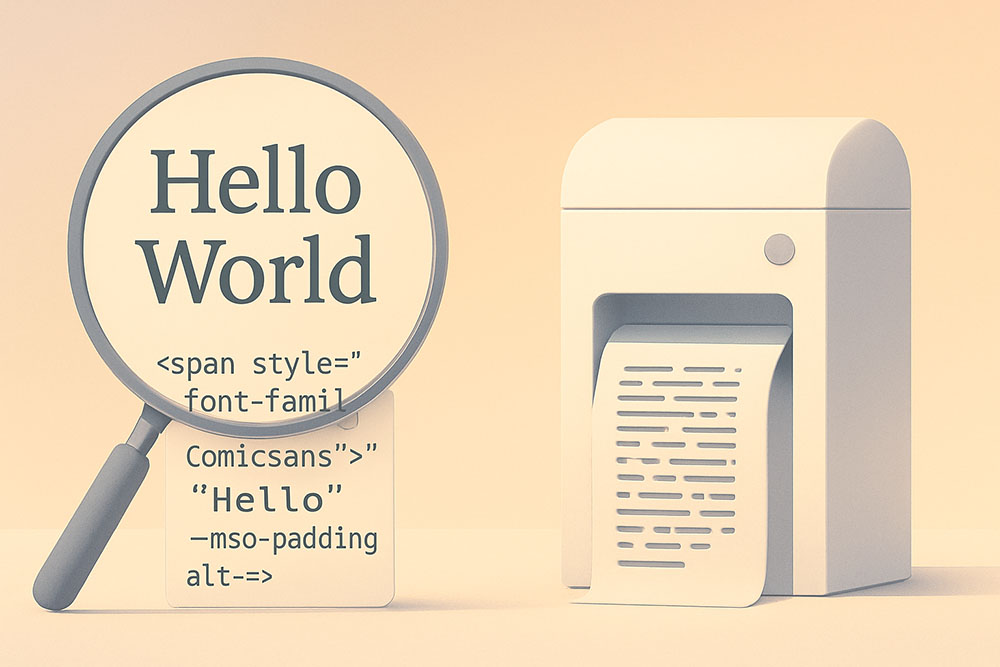
The Invisible Garbage in Your Clipboard
We live in a copy-paste culture. We research in a browser, draft in a Google Doc, format in Microsoft Word, and publish in a CMS like WordPress. It feels seamless, but under the hood, it is a disaster. When you copy text from a website or a rich-text document, you aren't just copying the words. You are copying a suitcase full of hidden code, CSS styles, span tags, and font families.
When you paste that "rich" content into your destination, you bring all that garbage with you. This is why your website’s font looks weird on mobile. This is why your email newsletter has one paragraph that is slightly larger than the others. This is why your code editor is throwing syntax errors on a line that looks empty.
The solution is simple but often ignored: Convert to Plain Text. It is the digital equivalent of washing your hands before cooking.
What Actually Gets Copied?
To understand why this matters, we need to look at the source code. Let's say you copy a sentence from a nicely designed blog post.
Visually, you see: "The quick brown fox."
digitally, the clipboard might hold:
<span style="font-family: 'Helvetica Neue', sans-serif; font-size: 16px; color: #333333; background-color: #ffffff;">The quick brown <a href="...">fox</a>.</span>
If you paste this into a WYSIWYG editor (like WordPress or Mailchimp), that inline style `color: #333333` (dark gray) overrides your website's default text color. If you later decide to change your site to Dark Mode, that specific paragraph will stay dark gray on a black background, becoming unreadable. You have hard-coded a style without realizing it.
Scenario 1: The CMS Nightmare
Web developers hate rich text pasting. When a client copies an article from Word and pastes it into their website, the HTML bloats. A simple 500-word article should be about 3KB of data. A Word-pasted article can be 50KB of bloated XML tags.
This "spaghetti code" slows down page load times and hurts SEO. Google struggles to parse the content because it has to wade through layers of useless formatting tags. Using a Plain Text Converter strips all of this away. It leaves you with just the characters clean, raw, and ready to assume the styling of your website's CSS.
Scenario 2: The Developer's "Smart Quote" Trap
If you are a programmer, you have likely faced the "Smart Quote" bug. You find a code snippet on a blog. You copy it. You paste it into your terminal or IDE.
Error: Unexpected token
Why? Because the blog blog formatted the code using typographic "curly" quotes (“ and ”) instead of the standard machine straight quotes (" and "). To a human, they look the same. To a compiler, a curly quote is not a string delimiter; it's an unknown symbol.
A good Plain Text or "Code Cleaner" tool doesn't just strip bold/italic; it creates ASCII-safe text. It replaces smart quotes with straight quotes. It replaces non-breaking spaces (which cause havoc in Python) with regular spacebars. It sanitizes the input so it is safe to run.
Scenario 3: Email Marketing Consistency
Email clients (Outlook, Gmail, Apple Mail) are notoriously fickle. If you paste pre-formatted text into an email builder, you are rolling the dice. Outlook might decide to render that text as Times New Roman regardless of your settings.
The golden rule of email marketing is: Design in the tool, not in the source. Paste plain text, then use the email builder's buttons to add bold or headers. This ensures the HTML is generated by the email tool itself, guaranteeing the best possible compatibility across devices.
Security Risks of Rich Text
This is rare but scary: "Pastejacking." It is a security vulnerability where a malicious website hides commands in the clipboard. You select text that looks like `git clone repo`, but hidden in the rich text styling is a command to download malware.
When you paste into a terminal, the hidden command runs. While modern terminals have protections against this, pasting into a Plain Text Converter first acts as a firewall. The converter ignores the hidden scripts and hidden styles, revealing only the visible characters. If there is a hidden command, you will see it in the plain text box before you execute it.
How to Integrate This into Your Workflow
You might say, "I can just use Ctrl+Shift+V to paste as plain text." And yes, that works in Chrome. But it doesn't work in every application, and it doesn't fix issues like smart quotes or double-spacing.
The robust workflow is:
- Copy the source material.
- Open your Plain Text Converter tab (keep it pinned!).
- Paste. The tool instantly strips HTML, converts unicode anomalies, and normalizes whitespace.
- Copy the result.
- Paste into your final destination.
It adds two seconds to your process, but it saves hours of debugging CSS or fixing broken layouts later.
Conclusion
Formatting is the clothing of your text. When you move text from one house to another, you should strip it naked first. Let the new environment dress it up. This philosophy keeps your websites fast, your code functional, and your design consistent. Embrace the plainness.