
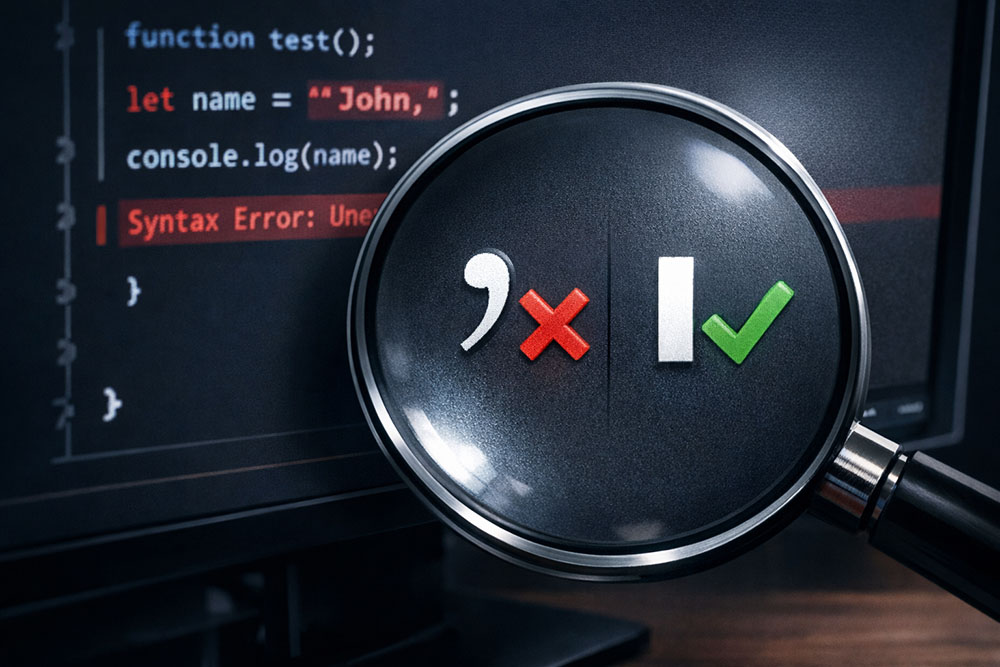
The "Smart" Feature That Makes You Look Dumb
In the quest to make digital documents look more like professionally typeset books, software developers introduced "Smart Quotes." You know them. They are the curly quotation marks (“ and ”) that hug the text, rather than the straight vertical lines (" and ") found on typewriters and coding terminals. Visually, they are elegant. Functionally, they are a nightmare.
If you are writing a novel in Microsoft Word, smart quotes are great. But if you are writing code, configuring a server, crafting a JSON file, or even writing a command for a terminal, smart quotes are catastrophic. A computer interpreter does not see a "curly quote" as a quote. It sees it as a completely foreign, unknown symbol. It throws a syntax error. It crashes the script. It breaks the website.
And it is not just quotes. Modern word processors inject a whole ecosystem of invisible characters-non-breaking spaces, zero-width joiners, and proprietary hyphens that can wreak havoc when you copy-paste text between applications. In this guide, we will dissect these hidden saboteurs and look at the workflow to strip them out instantly.
The Anatomy of a "Smart" Disaster
Let’s look at a real-world scenario that happens thousands of times a day in development teams. A senior developer writes a quick snippet of SQL code to fix a database issue. They paste it into Slack or Microsoft Teams to share it with a junior colleague.
Slack (or the OS) automatically "beautifies" the text. It turns the standard single quote `'` into a typographic apostrophe `’`.
The junior developer copies that code and runs it.
Error: Syntax error near "’".
The developer stares at the code. It looks right. The quote is right there. They might spend 30 minutes debugging a query that is logically perfect but syntactically broken because of a character that looks 99% identical to the correct one but has a different Unicode ID.
The Invisible Gremlins: Non-Breaking Spaces
Even more insidious than the smart quote is the "Non-Breaking Space" (NBSP). In HTML, this is ` `. On a Mac, you create it by accidentally holding `Option + Space`. In Word, it appears when you try to keep two words together on a line.
To the human eye, a non-breaking space looks exactly like a normal space. It is a blank gap between words. But to a compiler or a strict data parser, it is a different character.
If you write python code like variable = 10, but the space after "variable" is an NBSP, Python might throw an Unexpected character error. Since the character is invisible, you can stare at that line for hours and never see the problem.
The "Em Dash" Conspiracy
Type two hyphens in Word (--), and it helpfully converts them into a long Em Dash (-).
In prose, this is correct grammar.
In a command line interface, --version is a standard flag. -version is a command not found.
If you copy a tutorial from a blog that didn't format its code blocks properly, you are likely copying Em Dashes. Pasting them into your terminal will result in frustration. You have to manually backspace and retype the hyphens.
The Solution: One-Click Sanitization
Manual fixing is unreliable because your eyes cannot be trusted. You cannot "see" a non-breaking space. You might miss one curly quote in a 500-line JSON file.
The solution is a Plain Text Converter or a dedicated "Smart Quote Remover" tool. These tools function as a sanitation layer.
How It Works Under the Hood
When you paste text into the tool, it runs a series of "Find and Replace" operations based on a dictionary of problematic characters:
- Quotes: Replaces “ ” ‘ ’ with " and '
- Dashes: Replaces — and – with -
- Spaces: Replaces NBSP and other wide spaces with standard ASCII space (U+0020).
- Ellipsis: Replaces the single character … with three distinct dots ...
It essentially downgrades the text from "Rich Unicode" to "Safe ASCII."
Workflow for Writers and Coders
If you are a technical writer, a developer, or a data analyst, you should treat the clipboard as "dirty" by default.
- Drafting: Write your content wherever you want (GDocs, Word, Notion). Let the software make it pretty.
- Staging: Before you publish the code snippet or run the command, Copy it.
- Cleaning: Paste it into the Sanitizer Tool.
- Verifying: Copy the "Clean" output.
- Execution: Paste into your IDE, Terminal, or CMS code block.
This 5-second habit prevents the "it works on my machine" syndrome caused by formatting differences.
Conclusion
Smart quotes are a relic of print design trying to survive in a digital, functional world. They have their place in your Kindle book, on your wedding invitation, in your printed resume. But in the machinery of the internet code, data, and configuration they are foreign bodies. Keep your quotes straight, and your code will run straight.