
The Hidden Cost of Dirty Data
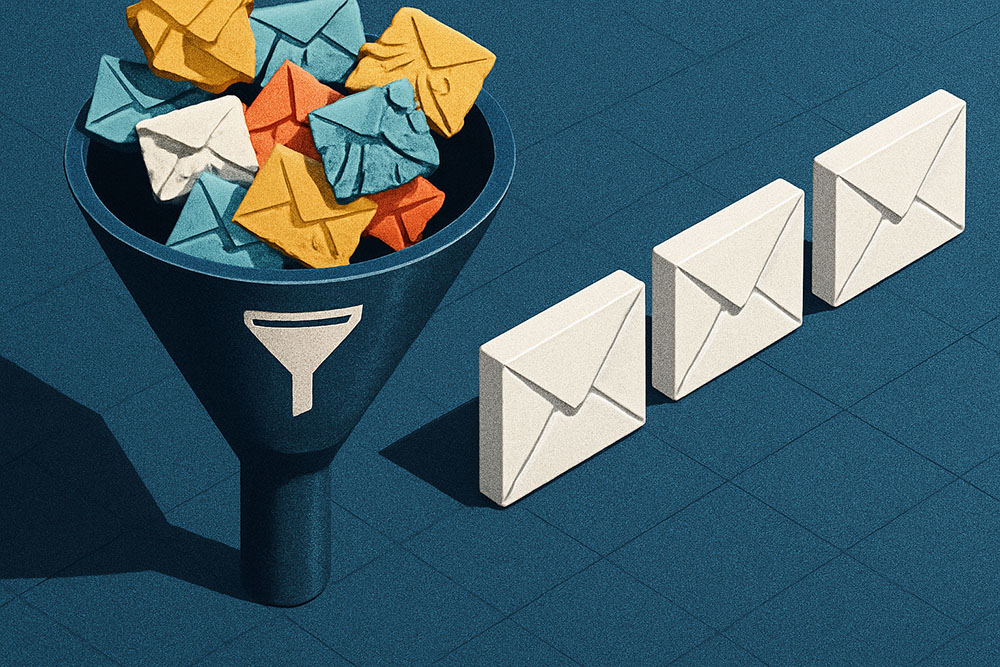
In the world of digital marketing, data is gold. But if that gold is mixed with mud, it loses its value. One of the most common, yet overlooked problems in email marketing is the "dirty list" a database riddled with duplicate entries, typos, and outdated information. While it might seem harmless to have the same contact listed twice, the consequences of duplicate data ripple through every aspect of your business, from inflated software costs to damaged sender reputation.
Imagine you are paying your email service provider (ESP) based on the number of subscribers. If you have a list of 50,000 people, but 10% are duplicates, you are literally throwing money away every month to store data you don't need. Worse, if you send the same marketing email to the same person twice in five minutes, you don't look persistent; you look incompetent. You look like a spammer. The user gets annoyed, hits "Unsubscribe" (or worse, "Mark as Spam"), and your deliverability score takes a hit.
Cleaning an email list used to be a nightmare of Excel formulas and manual scanning. Today, using a dedicated Duplicate Line Remover tool is the industry standard for maintaining hygiene. In this guide, we will explore why duplicates happen, why Excel is not the answer, and how to scrub your list in seconds.
Why Do You Have Duplicates in the First Place?
You might be thinking, "I have a double opt-in system, so I should be safe." Unfortunately, duplicates find a way. They are like weeds in a garden. Here is how they typically infiltrate your database:
1. The "Impatience" Click
A user signs up for your newsletter to get a discount code. The page loads slowly. They click the "Submit" button again. And again. Depending on how your form is coded, this can send three separate API requests to your database, creating three identical rows.
2. Case Sensitivity Issues
To a human, "[email protected]" and "[email protected]" are the same person. To many poorly configured databases, these are two unique strings of text. If a user signs up on their phone (which often capitalizes the first letter automatically) and later on their laptop (all lowercase), you now have them twice.
3. Merging Lists
This is the most common culprit. You host a webinar and export the attendee list. You have your main newsletter list. You have a list of customers who bought a product. When you try to combine these three CSV files into one "Master List," you inevitably end up with overlaps. The loyal customer who attended the webinar and subscribes to the newsletter is now in your database three times.
Why Excel Is Not the Solution
For years, the default reaction to this problem was "I'll just fix it in Excel." If you have a list of 100 people, that works. If you have 100,000, Excel becomes a trap.
Excel’s "Remove Duplicates" feature is powerful, but dangerous. It is often too aggressive or not aggressive enough. It might remove a row because the email is the same, but maybe you wanted to keep the row that had the most recent "Last Active" date. Doing this requires complex VLOOKUP formulas or Python scripts that the average marketer doesn't have time to write.
Furthermore, opening massive CSV files in Excel can corrupt data. Excel has a habit of converting certain number strings (like credit card IDs or phone numbers) into scientific notation (5.55E+10), permanently destroying that data when you save the file. A specialized, browser-based text tool avoids this rendering issue entirely because it treats everything as raw text strings.
Step-by-Step: Cleaning Your List in Under 60 Seconds
Let’s walk through the workflow of cleaning a messy list using a Duplicate Line Remover. This process assumes you have your data exported as a CSV or a simple text list.
Step 1: The Export
Go to your email provider (Mailchimp, ConvertKit, HubSpot, etc.) and export your audience. Choose "CSV" format. Open this file in a plain text editor (like Notepad or TextEdit) or a spreadsheet viewer just to verify the column you need. Usually, you only need to de-dupe the "Email Address" column.
Step 2: Isolate the Emails
Copy the entire column of email addresses. Do not worry if the list is huge; modern text processing tools can handle megabytes of text in the clipboard.
Step 3: The Tool Processing
Navigate to the Duplicate Line Remover tool. Paste your list into the input box.
Before you click "Remove," check the settings:
- Case Insensitive: Always check this. You want "[email protected]" and "[email protected]" to be treated as duplicates.
- Trim Whitespace: Crucial. Sometimes a copy-paste error adds a space at the end of an email ("[email protected] "). A computer sees that space as a unique character. Trimming ensures only the email itself is compared.
Step 4: The Result
Click the button. Instantly, the tool processes the list. You will likely see a status message: "Original lines: 15,400. Unique lines: 12,200. Removed: 3,200."
That number—3,200—represents money saved.
Step 5: Re-Importing
Copy the clean list. Now, you have two options depending on your CRM:
- The "Update" Method: If you are just cleaning a list of emails to send a cold campaign, you can paste this clean list directly into your sending tool.
- The "Tagging" Method: If you are managing a complex database, you might want to take your new list of unique emails and use it to tag existing users, archiving anyone not on this list.
Advanced Strategy: The "Case Normalization" Trick
Before you remove duplicates, there is one pro-tip that helps keep your data beautiful. Use a Text Case Converter tool first.
If you have a mix of "[email protected]" and "[email protected]", your list looks messy. Before de-duping:
- Paste your emails into a Lowercase converter.
- Convert everything to lowercase.
- Then paste that uniform list into the Duplicate Remover.
This ensures 100% accuracy and makes your database look professional. No one likes receiving an email that starts with "Hi JOHN," it feels automated. Keeping data lowercase helps prevent personalization glitches.
When to Do This?
Data hygiene is not a one-time task; it is a routine. You should perform this cleaning ritual:
- Before every major campaign: Don't risk your domain reputation on Black Friday by sending to bad data.
- After importing offline leads: If you collected emails at a trade show, scrub them against your current list before adding them.
- Quarterly: Just as general maintenance to catch any glitches in your signup forms.
Conclusion
A duplicate remover is one of those simple, utilitarian tools that doesn't look exciting but is essentially an "Optimize Revenue" button. By stripping out the dead weight from your lists, you improve your open rates (because the denominator is smaller), you lower your costs, and you protect your sender score. Stop trying to be an Excel wizard and let the algorithms do the work for you.